Documentation of Appiki
Judul : Documentation of Appiki
link : Documentation of Appiki
Documentation of Appiki

Appiki Documentation with each step explained in detail Easy installation without any trouble follow below documentation and install this pretty professional template. The widgets gadgets images have been attached properly where red tic mark for better understanding easily
We hope this might help you !
- Buy Now: Appiki Blogger Template - Download/Preview
- Installation - How to Install Blogger Template with Clean Gadgets
- Video Docs - Video Documentation of Air Flex Blogger template
- Shortcut Codes - Piki Templates Posts, Pages, and Buttons Short Codes
Here is a detailed Documentation of Appiki Blogger - Template
Read Carefully to Install all Gadgets on Your Website
2. Admin Control Panel:
To edit or handle the blog posts, comments system, no. of posts, fixed menu, Facebook SDK plugin, etc. These Options Can be Controlled from Layout in Blogger Dashboard.2.1). Facebook SDK (Plugin):
Here you can use this gadget to install the Facebook comment box and Facebook page in the sidebar. For More Click Here.Example of Facebook:
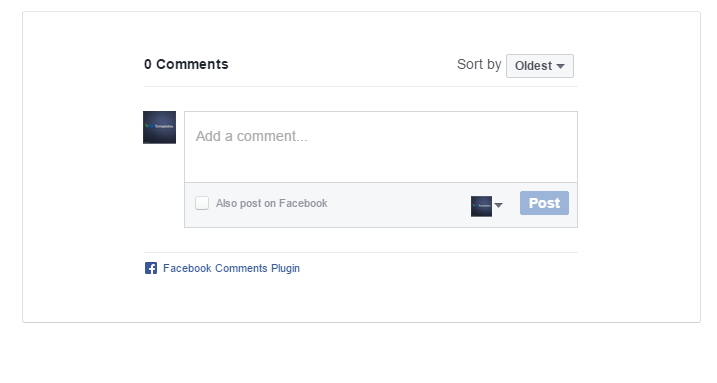
Note: Below in details, all important steps provided for setup Facebook Comments System/Facebook Page on sidebar
2.2). Default Variables/Comments:
Open Layout > then click on Edit Icon > in the Default Variables gadget.Example:

Example to set Disqus Comment box:

Use below shortcut code: commentsSystem = facebook or disqus or blogger
disqusShortname = pikitemplates
noThumb = image url
You can use Disqus comment box a optional feature of our template, Just go to disqus.com create account after that tap on Get Started and follow "I Want to install Disqus on my Site" as shown in above image how to setup shortname for disqus. That's done just change blogger comment system and use disqus comments pluign easily Example of Disqus Comment:

Note: Many Users Facing Problem adding Disqus Comment Box make sure you have added website link and created profile short name in Disqus.
2.3). Related Posts/ Show Texts:
Open Layout > then click on Edit Icon > in the Related Posts/ Email text gadget. Example:
Example of Related Posts:
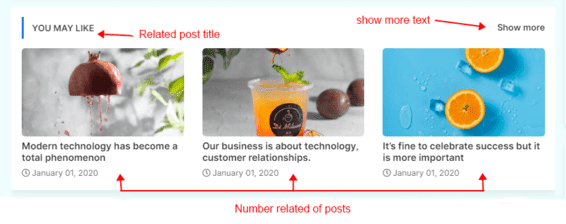
relatedPostsNum = 3 - you can set number of Related Posts
loadMorePosts = Load More - you can change Load More Homepage button text
Example of Load More text:

Note: Use only Lowercase(small letters) letter in shortcode as display in above image.
2.4). Lazy Scrolls/ More Text:
Open Layout > then click on Edit Icon > in the Lazy Scrolls/ More Text gadget. Example:
fixedMenu = true or false - you change sticky menu fixed to scrolled
showMoreText = Show More - you can easily change Show More text in Featured Posts
Note: Use only Lowercase(small letters) letter in shortcode as display in above image.
Top Pages Gadget :- Open Layout > then click on Edit Icon > in the Top Pages Section gadget.

Here you can change Top Pages Links which show at top of Template and also in Mobile view these pages automatically shows under Mobile Slider Menu. You can edit and replace links from here as per your requirements

Here you can add a social media link in your topbar by using shortcut code in LinkList Gadget as shown in the above image. Remember these social media icons automatically shows into Mobile Menu Slider.
All the Features are Designed in this template you can use on your blog
Social Icons :- This template support various social icons like facebook, whatsapp, instagram, pinterest, blogger, reddit, youtube, linkedin, twitter etc.
All the Features are Designed in this template you can use on your blog

Note:- Use optimised image in your head logo to enhance website speed .
Main Menu :- Open Layout > then click on Edit Icon > in the Main Menu gadget.

All the main menu items can be edit and can be changed properly above the image is provided you to understand properly.
All the main menu items can be edit and can be changed properly above the image is provided you to understand properly.
What are Labels?

To Create Mega Menu use Code
1:- For Recent Posts in Mega Menu
Use Shortcut Code :-
Happy Life (in First Box)
megamenu/recent or megamenu/random(in Second Box)
2 :- For Label Posts in Mega Menu
Use Shortcut Code :-
Your Text (in First Box)
megamenu/Your Label (in Second Box)
Make Sure Use megamenu/Happy Life in 2nd Box. where Happy Life is a Example Label
To Create submenu use one underscore tab ( _submenu)
To Create more merging submenu use double underscore tab ( __submenu)
Use Shortcut Code :-
Your Text (in First Box)
megamenu/Your Label (in Second Box)
Make Sure Use megamenu/Happy Life in 2nd Box. where Happy Life is a Example Label
To Create submenu use one underscore tab ( _submenu)
To Create more merging submenu use double underscore tab ( __submenu)
Note:- Use shortcut code correctly to make working menu functions .
Application Catalog :- Open Layout > then click on Edit Icon > in the Application Catalog (section) gadget.

You can use this section to set up the Application catalog easily with the help of the blogger LinkList widget section. as shown in the above image you can set title, caption and also image uploading options available. Always use Optimized images for your blog
Service Box Title/Buttons :- Open Layout > then click on Edit Icon > in the Service box Title/Buttons (section) gadget.

here is this widget you can change the title of the Service Box section and easy to insert links and buttons.
Most Downloaded Section :- Open Layout > then click on Edit Icon > in the Most Downloaded Section gadget.

For Most Downloaded Label Posts:-
Use this Shortcut Code
7/sgrid/Your Label
Just Put label = recent or label = Happy Life to display Featured Posts
Here you can use this section to display Responsive Mega Grid Posts with both label and Recent Shortcut Code
For Most Downloaded Recent Posts:-
Use this Shortcut Code
For Most Downloaded Recent Posts:-
Use this Shortcut Code
7/sgrid/recent
7/sgrid/random
For Most Downloaded Label Posts:-
Use this Shortcut Code
7/sgrid/Your Label
Just Put label = recent or label = Happy Life to display Featured Posts
and type of shortcode is type= sgrid
Here you can use this section to display Responsive Fresh Posts with both label and Recent Shortcut Code
Category Label (A/B):- Open Layout > then click on Edit Icon > in the Category Labels (A/B) (section) gadget.

You can use this section to set up the Catalog Labels easily with the help of the blogger LinkList widget section. as shown in the above image you can set title, caption, and also image uploading options available. Always use Optimized images for your blog
Main Store Posts:- Open Layout > then click on Edit Icon > in the Main Store Posts (section) gadget.

Here you can use this section to display Responsive Main store posts with both label and Recent Shortcut Code
For Main Store Recent Posts :-
Use this Shortcut Code
Here you can use this section to display Responsive Main store posts with both label and Recent Shortcut Code
For Main Store Recent Posts :-
Use this Shortcut Code
12/store/recent
12/store/random
For Bottom Main Store Label Posts :-
Use this Shortcut Code
12/store/Your Label
Just Put label = recent or label = Happy Life to display Featured Posts
and type of shortcode is type= block
Here you can use this section to display Responsive Mega Grid Posts with both label and Recent Shortcut Code
Main Recent Posts:-
Open Layout > then click on Edit Icon > in the Main Recent Posts (section) gadget.

Main Recent Posts section with all editable options are specified in an above image like show author profile and adjust in feeds ads. You can easily edit and change from here
Open Layout > then click on Edit Icon > in the Top / Bottom Posts Ad (section) gadget.

Use the Shortcode:- (ads1)
Note:- Use this Shortcut Code to display Custom ads from Top Section ad Gadgets to display in Posts Paragraph Remember this code only works if Top Posts Posts ad code and Bottom Posts ad code Section Added (make a strike on shortcode to work as below screenshot)

Post-Author Social icons:- Open Blogger Setting > then Choose Edit Blogger Profile > and paste ShortCode.

Follow the steps to setup:

After editing, Blogger Author Profile follow the below instructions provided in the screenshot

Here use the below shortcut code to display social media icons here
HTML Code :- <a href="Your Link Here">Icon Name</a>
HTML Example :- <a href="https://instagram.com/pikitemplates">instagram</a>
HTML Code :- <a href="Your Link Here">Icon Name</a>
HTML Example :- <a href="https://instagram.com/pikitemplates">instagram</a>
Copy code :
Hello this is Jane Doe, I am Web Designer and Expert at Piki Templates<a href="https://facebook.com/pikitemplates">facebook</a><a href="https://twitter.com/pikitemplates">twitter</a><a href="https://youtube.com/pikitemplates">youtube</a><a href="https://instagram.com/pikitemplates">instagram</a><a href="https://www.pikitemplates.com/">external-link</a>Note:- here in href replace with your own link of your social media links on your template.
Social Icons :- This template support various social icons like facebook, whatsapp, instagram, pinterest, blogger, reddit, youtube, linkedin, twitter etc.
Add this Short code :
<div class="fb-page" data-href="YOUR FACEBOOK PAGE URL" data-width="500" data-small-header="false" data-adapt-container-width="true" data-hide-cover="false" data-show-facepile="true"></div> Note:- here in data-href Replace with your own link of your facebook page so install Facebook page on your template
Remember: This Facebook plugin works only if for both Facebook Page and Facebook Comment Box You have Installed below facebook SDK code in admin section follow below steps provided here

here you can add Facebook SDK Code to Show Facebook Comments in Template Also Turn of Facebook Comment System From Default Variables as shown in First Admin Section at top of documentation. Copy Code from below box and paste in Admin Section of Facebook Plugin gadget.
Facebook SDK en_US :
https://connect.facebook.net/en_US/sdk.js#xfbml=1&version=v8.0 Note :- Only this Sdk Code Shows both facebook page in sidebar and facebook comment box as you want to set on your blog
Sidebar Section :- Open Layout > then click on Edit Icon > in the Social Widget (section) gadget.

Here you can add a social media link in your sidebar by using shortcut code in LinkList Gadget as shown in the above image
Other Sidebar Gadgets :- Open Layout > then Click on Edit Icon > and Select or Add a Gadget like Popular Posts, Follow by Email, LinkList, BlogSearch, Contact Form etc.

Here you can add a social media link in your sidebar by using shortcut code in LinkList Gadget as shown in the above image
Social Icons :- This template support various social icons like facebook, whatsapp, instagram, pinterest, blogger, reddit, youtube, linkedin, twitter etc.
Other Sidebar Gadgets :- Open Layout > then Click on Edit Icon > and Select or Add a Gadget like Popular Posts, Follow by Email, LinkList, BlogSearch, Contact Form etc.
Sidebar Posts Section:- Open Layout > then click on Edit Icon > in the Most Loved Section gadget.

For Sidebar Posts Label Posts:-
Use this Shortcut Code
4/sidebar/Your Label
Just Put label = recent/random or label = Your Label to display Featured Posts
Here you can use this section to display Responsive Mega Grid Posts with both label and Recent Shortcut Code
For Sidebar Posts Recent Posts:-
Use this Shortcut Code
For Sidebar Posts Recent Posts:-
Use this Shortcut Code
4/sidebar/recent
4/sidebar/random
For Sidebar Posts Label Posts:-
Use this Shortcut Code
4/sidebar/Your Label
Just Put label = recent/random or label = Your Label to display Featured Posts
and type of shortcode is type= grid
Here you can use this section to display responsive sidebar posts with both label and recent shortcut code
To display recent comments on your website, use our shortcode as shown in the above image also you can adjust the number of comments easily.

Here you can add social media icons to display on your blog links of social media display in Footer Section
Social Icons :- This template support various social icons like facebook, whatsapp, instagram, pinterest, blogger, reddit, youtube, linkedin, twitter etc.
Footer Copyright:- Open Layout > then click on Edit Icon > in the Footer Copyright

Here you can insert your website footer credit link but only for premium users's free users are not able to remove and edit our website link at the footer.
Cookies Consent:- Open Layout > then click on Edit Icon > in the Cookies Consent

Cookies consent is an advanced plugin system provided by piki templates where you can set Cookies to expire days so that it will store some bytes of data in users device so that next time when your visitor revisit again to your website it loads faster and give an enhanced user experience.

here by default Blog Site Feed is Always Full (Not Change to its Options)
Note:- Follow the instructions given here to turn on blog feed in full mode always.
Demikianlah Artikel Documentation of Appiki
Sekianlah artikel Documentation of Appiki kali ini, mudah-mudahan bisa memberi manfaat untuk anda semua. baiklah, sampai jumpa di postingan artikel lainnya.
Anda sekarang membaca artikel Documentation of Appiki dengan alamat link https://hakikidigital.blogspot.com/2021/07/documentation-of-appiki.html
Posting Komentar
image quote pre code