Dokumentasi dari News Blogger
Judul : Dokumentasi dari News Blogger
link : Dokumentasi dari News Blogger
Dokumentasi dari News Blogger

News Blogger Dokumentasi dengan setiap langkah dijelaskan secara rinci Instalasi mudah tanpa kesulitan ikuti dokumentasi di bawah ini dan instal template yang cukup profesional ini. Gambar widget widget telah dilampirkan dengan benar di mana tanda centang merah untuk pemahaman yang lebih baik dengan mudah
Kami harap ini dapat membantu Anda!
- Beli Sekarang: Template Blogger Blogger Berita - Unduh/Pratinjau
- Instalasi - Cara Memasang Template Blogger dengan Gadget Bersih
- Video Docs - Dokumentasi Video template Blogger Berita
- Kode Pintasan - Templat Piki Posting, Halaman, dan Tombol Kode Pendek
Berikut ini adalah Dokumentasi mendetail dari Blogger Berita - Template
Baca dengan Hati-hati untuk Memasang semua Gadget di Situs Web Anda
2. Panel Kontrol Admin:
Untuk mengedit atau menangani posting blog, sistem komentar, no. posting, menu tetap, plugin Facebook SDK, dll. Opsi Ini Dapat Dikendalikan dari Tata Letak di Dasbor Blogger.2.1). Facebook SDK (Plugin):
Di sini Anda dapat menggunakan gadget ini untuk memasang kotak komentar Facebook dan halaman Facebook di bilah sisi. Untuk lebih Click Here.Contoh Facebook:
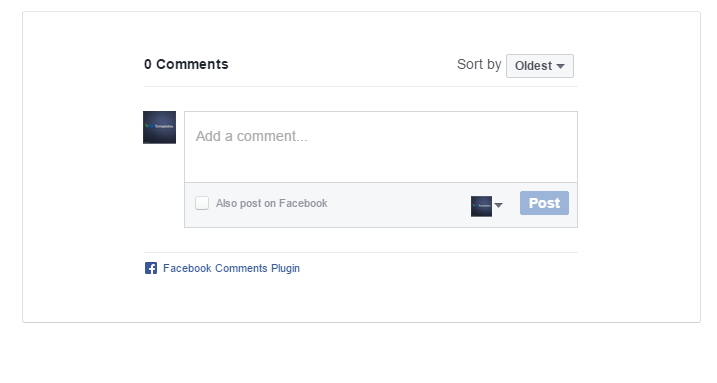
Catatan: Di bawah ini secara rinci, semua langkah penting yang disediakan untuk pengaturan Sistem Komentar Facebook/Halaman Facebook di sidebar
2.2). Variabel/Komentar Default:
Buka Tata Letak > lalu klik Edit Ikon > di gadget Variabel Default.
Contoh:

Di sini Anda dapat mengatur DisqusShortname, dan mengubah Sistem Komentar blog Anda Kami Mendukung Plugin 3 Komentar Facebook, Disqus, Blogger
Contoh untuk mengatur kotak Komentar Disqus:

Gunakan kode pintasan di bawah ini: commentsSystem = facebook atau disqus atau blogger
disqusNama pendek = pikitemplates
noThumb = url gambar
Anda dapat menggunakan kotak komentar Disqus fitur opsional dari template kami, Cukup buka disqus.com buat akun setelah itu ketuk Mulai dan ikuti "Saya Ingin menginstal Disqus di Situs saya" seperti yang ditunjukkan pada gambar di atas cara mengatur nama pendek untuk disqus . Selesai tinggal ganti sistem komentar blogger dan gunakan plugin komentar disqus dengan mudah Contoh Komentar Disqus:

Catatan: Banyak Pengguna Menghadapi Masalah menambahkan Kotak Komentar Disqus pastikan Anda telah menambahkan tautan situs web dan membuat nama pendek profil di Disqus.
2.3). Posting Terkait/ Tampilkan Teks:
Buka Layout > lalu klik Edit Icon > di gadget Related Posts/Email text. Contoh:
Di sini Anda dapat mengatur lebih banyak teks dan judul posting terkait juga Anda dapat mengatur banyak posting terkait dengan mudah tanpa masalah. Untuk mengubah muat lebih banyak teks, edit dan ubah dari sini di atas opsi daftar tautan yang tercantum.
Contoh Posting Terkait:
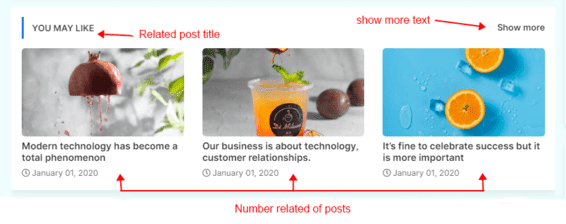
Gunakan kode pintasan di bawah ini: relatedPostsText = Anda Mungkin Menyukai Postingan Ini - Anda mengubah judul Posting Terkait
relatedPostsNum = 3 - Anda dapat mengatur jumlah Posting Terkait
loadMorePosts = Muat Lebih Banyak - Anda dapat mengubah teks tombol Muat Lebih Banyak Beranda
Contoh teks Load More:

Note: Use only Lowercase(small letters) letter in shortcode as display in above image.
2.4). Gulungan Malas/ Lebih Banyak Teks:
Buka Layout > lalu klik Edit Icon > di gadget Lazy Scrolls/ More Text. Contoh:
Di sini Anda dapat mengatur Sticky Sidebar dan Sticky Menu dengan mudah dengan memberikan nilai benar atau salah. seperti yang ditunjukkan pada gambar di atas. Gunakan kode pintasan di bawah ini: fixedSidebar = true atau false - Anda mengubah bilah sisi lengket tetap menjadi digulir
fixedMenu = benar atau salah - Anda mengubah menu tetap menjadi digulir
showMoreText = Tampilkan Lebih Banyak - Anda dapat dengan mudah mengubah Tampilkan Lebih Banyak teks di Postingan Unggulan
Catatan: Gunakan hanya huruf kecil (huruf kecil) dalam kode pendek seperti yang ditampilkan pada gambar di atas.
Gadget Halaman Teratas :- Buka Tata Letak > lalu klik Edit Ikon > di gadget Bagian Halaman Teratas.
Di sini Anda dapat mengubah Tautan Halaman Teratas yang ditampilkan di bagian atas Template dan juga dalam tampilan Seluler, halaman-halaman ini secara otomatis ditampilkan di bawah Menu Slider Seluler. Anda dapat mengedit dan mengganti tautan dari sini sesuai kebutuhan Anda
Gadget Sosial Teratas :- Buka Tata Letak > lalu klik Edit Ikon > di gadget Bagian Sosial Teratas.
Di sini Anda dapat menambahkan tautan media sosial di bilah atas Anda dengan menggunakan kode pintasan di LinkList Gadget seperti yang ditunjukkan pada gambar di atas. Ingat ikon media sosial ini secara otomatis ditampilkan ke dalam Mobile Menu Slider.
Ikon Sosial:- Template ini mendukung berbagai ikon sosial seperti facebook, whatsapp, instagram, pinterest, blogger, reddit, youtube, linkedin, twitter dll.
Semua Fitur Dirancang dalam template ini yang dapat Anda gunakan di blog Anda
Logo Utama :- Buka Tata Letak > lalu klik Edit Ikon > di gadget Logo Utama (Header).

Di sini Anda dapat mengubah logo utama blog Anda, klik hapus dan unggah logo baru Anda di situs web Anda. dan coba kompres logo Anda (tersedia berbagai alat kompresi png gambar online) kompresi dapat membantu Anda meningkatkan kecepatan situs web Anda.
Catatan: - Gunakan gambar yang dioptimalkan di logo kepala Anda untuk meningkatkan kecepatan situs web.
Top Menu Tag :- Buka Tata Letak > lalu klik Edit Ikon > di gadget Menu Tag Teratas.

Di sini Anda dapat menggunakan gadget ini untuk menampilkan tag tren teratas khusus dengan mudah di situs web Anda di bagian atas tajuk beranda, Anda juga dapat menambahkan tautan tombol baru dan mengeditnya sesuai kebutuhan Anda.
Menu Utama :- Buka Tata Letak > lalu klik Edit Ikon > di gadget Menu Utama.

Semua item menu utama dapat diedit dan dapat diubah dengan benar di atas gambar asalkan Anda mengerti dengan benar.
To Create Mega Menu use Code
1:- For Recent Posts in Mega Menu
Use Shortcut Code :-
Happy Life (in First Box)
megamenu/recent (in Second Box)
 For Featured Popular Posts :-
Use this Popular Posts Gadget
Remember to set at least 5 posts in Popular Posts Gadget to show completely in homepage
Semua item menu utama dapat diedit dan dapat diubah dengan benar di atas gambar asalkan Anda mengerti dengan benar.
To Create Mega Menu use Code
1:- For Recent Posts in Mega Menu
Use Shortcut Code :-
Happy Life (in First Box)
megamenu/recent (in Second Box)
2 :- For Label Posts in Mega Menu
Use Shortcut Code :-
Happy Life (in First Box)
megamenu/Happy Life (in Second Box)
Make Sure Use megamenu/Happy Life in 2nd Box. where Happy Life is a Example Label
To Create submenu use one underscore tab ( _submenu)
To Create more merging submenu use double underscore tab ( __submenu)
Use Shortcut Code :-
Happy Life (in First Box)
megamenu/Happy Life (in Second Box)
Make Sure Use megamenu/Happy Life in 2nd Box. where Happy Life is a Example Label
To Create submenu use one underscore tab ( _submenu)
To Create more merging submenu use double underscore tab ( __submenu)
Note:- Use shortcut code correctly to make working menu functions .
Breaking Slider :- Open Layout > then click on Edit Icon > in the Breaking Slider (section) gadget.

Here you can use this section to display Responsive Breaking News Slider with both label and Recent Shortcut Code
For Recent Posts :-
Use this Shortcut Code
6/trending/recent
For Label Posts :-
Use this Shortcut Code
6/trending/Your Label
Just Put label = recent or label = Happy Life to display Breaking Posts
Here you can use this section to display Responsive Breaking News Slider with both label and Recent Shortcut Code
For Recent Posts :-
Use this Shortcut Code
6/trending/recent
For Label Posts :-
Use this Shortcut Code
6/trending/Your Label
Just Put label = recent or label = Happy Life to display Breaking Posts
and type of shortcode is type = trending
Note:- All the Shortcut Codes Already installed and Provided with Template.
Hot Posts :- Open Layout > then click on Edit Icon > in the Hot Posts gadget.

Here you can use this section gadget to show sliding vertical trending news posts easily with the help od blogger popular posts gadget without any trouble, easiest way and faster loading widgets in blogger
Feature Posts :- Open Layout > then click on Edit Icon > in the Feature Posts (section) gadget.
1) You can use Popular Posts Gadget Also and Custom Featured Posts Gadget Also
1) You can use Popular Posts Gadget Also and Custom Featured Posts Gadget Also
Use this Popular Posts Gadget
2) Featured Post Gadget with Jquery where you can insert label

Here you can use this section to display Responsive Feature with both label and Recent Shortcut Code
For Featured Recent Posts :-
Use this Shortcut Code
featured/recent
For Featured Label Posts :-
Use this Shortcut Code
featured/Your Label
Just Put label = recent or label = Happy Life to display Feature Posts
Here you can use this section to display Responsive Feature with both label and Recent Shortcut Code
For Featured Recent Posts :-
Use this Shortcut Code
featured/recent
For Featured Label Posts :-
Use this Shortcut Code
featured/Your Label
Just Put label = recent or label = Happy Life to display Feature Posts
and type of shortcode is type = featured
Note:- All the Shortcut Codes Already installed and Provided with Template .
Fresh Posts Section :- Open Layout > then click on Edit Icon > in the Fresh Posts Section gadget.

Here you can use this section to display Responsive Mega Grid Posts with both label and Recent Shortcut Code
For Fresh Posts Recent Posts :-
Use this Shortcut Code
For Fresh Posts Recent Posts :-
Use this Shortcut Code
4/sgrid/recent
For Fresh Posts Label Posts :-
Use this Shortcut Code
4/sgrid/Your Label
Just Put label = recent or label = Happy Life to display Featured Posts
For Fresh Posts Label Posts :-
Use this Shortcut Code
4/sgrid/Your Label
Just Put label = recent or label = Happy Life to display Featured Posts
and type of shortcode is type= sgrid
Here you can use this section to display Responsive Fresh Posts with both label and Recent Shortcut Code
Main Feature Posts :- Open Layout > then click on Edit Icon > in the Main Feature Posts (section) gadget.

Here you can use this section to display Responsive Mega Grid Posts with both label and Recent Shortcut Code
For Mega Grid Recent Posts :-
Use this Shortcut Code
Here you can use this section to display Responsive Mega Grid Posts with both label and Recent Shortcut Code
For Mega Grid Recent Posts :-
Use this Shortcut Code
megagrid/recent
For Mega Grid Label Posts :-
Use this Shortcut Code
megagrid/Your Label
Just Put label = recent or label = Happy Life to display Featured Posts
For Mega Grid Label Posts :-
Use this Shortcut Code
megagrid/Your Label
Just Put label = recent or label = Happy Life to display Featured Posts
and type of shortcode is type= megagrid
Just Put label = recent or label = Happy Life to display Left/Right Posts
Here you can use this section to display Responsive Mega Grid Posts with both label and Recent Shortcut Code
For Left/Right Recent Posts :-


Use this Shortcut Code
5/col-left/recent
For Left/Right Recent Posts :-
Use this Shortcut Code
5/col-left/recent
5/col-right/recent
For Left/Right Label Posts :-
Use this Shortcut Code
For Left/Right Label Posts :-
Use this Shortcut Code
5/col-left/Your Label
5/col-right/Your Label
Just Put label = recent or label = Happy Life to display Left/Right Posts
and type of shortcode is type = col-left and type = col-right
Note:- First Use Left Side Code then Right Side Code for Proper View in Blog .
Bottom Updates Section Recent Posts :-

Use this Shortcut Code
5/sgrid/recent
5/lgrid/recent
For Simple/ List Grid Label Posts :-
Use this Shortcut Code
5/sgrid/Your Label
5/lgrid/Your Label
Just Put label='recent' or label='Happy Life' to display Breaking Posts
and type of shortcode is type='sgrid' and type='lgrid' here no='5' total number of posts that you want to show
Inside Posts Ads :-
Inside Posts Ads :-
Open Layout > then click on Edit Icon > in the Top / Bottom Posts Ad (section) gadget.

Use the Shortcode :- (ads1)
Note:- Use this Shortcut Code to display Custom ads from Top Section ad Gadgets to display in Posts Paragraph Remember this code only works if Top Posts Posts ad code and Bottom Posts ad code Section Added (make a strike on shortcode to work as below screenshot)

Post Author Social icons :- Open Blogger Setting > then Choose Edit Blogger Profile > and paste ShortCode.


After editing Blogger Author Profile follow the below instructions provided in the screenshot
Here use the below shortcut code to display social media icons here
HTML Code :- <a href="Your Link Here">Icon Name</a>
HTML Example :- <a href="https://instagram.com/pikitemplates">instagram</a>
HTML Code :- <a href="Your Link Here">Icon Name</a>
HTML Example :- <a href="https://instagram.com/pikitemplates">instagram</a>
Social Icons :- This template support various social icons like facebook, whatsapp, instagram, pinterest, blogger, reddit, youtube, linkedin, twitter etc.
Add this Short code :
<div class="fb-page" data-href="YOUR FACEBOOK PAGE URL" data-width="500" data-small-header="false" data-adapt-container-width="true" data-hide-cover="false" data-show-facepile="true"></div>
Note :- here in data-href Replace with your own link of your facebook page so install Facebook page on your template
Remember : This Facebook plugin works only if for both Facebook Page and Facebook Comment Box You have Installed below facebook sdk code in admin section follow below steps provided here

here you can add Facebook SDK Code to Show Facebook Comments in Template Also Turn of Facebook Comment System From Default Variables as shown in First Admin Section at top of documentation. Copy Code from below box and paste in Admin Section of Facebook Plugin gadget.
Facebook SDK en_US :
https://connect.facebook.net/en_US/sdk.js#xfbml=1&version=v8.0
Note :- Only this Sdk Code Shows both facebook page in sidebar and facebook comment box as you want to set on your blog
Sidebar Section :- Open Layout > then click on Edit Icon > in the Social Widget (section) gadget.

Here you can add a social media link in your sidebar by using shortcut code in LinkList Gadget as shown in the above image
Social Icons :- This template support various social icons like facebook, whatsapp, instagram, pinterest, blogger, reddit, youtube, linkedin, twitter etc.
Other Sidebar Gadgets :- Open Layout > then Click on Edit Icon > and Select or Add a Gadget like Popular Posts, Follow by Email, LinkList, BlogSearch, Contact Form etc.
All the Features are Designed in this template you can use on your blog
Footer Section :- Open Layout > then click on Edit Icon > in the Footer Section

Here you can use Custom Footer FeaturedPosts By Using this Shortcut code
For Recent Posts :-
Use this Shortcut Code
5/footer/recent
For Label Posts :-
Use this Shortcut Code
5/footer/Your Label
Footer Social Media :- Open Layout > then click on Edit Icon > in the Footer Section

Here you can add social media icons to display on your blog links of social media display in Footer Section
 here you can insert your pages links to show at bottom of the template as shown in above image
Turn Blog Feed " Full " :- Open Blogger Dashboard > Tap on Settings then Scroll to Other > Site Feed

here by default Blog Site Feed is Always Full (Not Change to its Options)
Footer Social Media :- Open Layout > then click on Edit Icon > in the Footer Section
Here you can add social media icons to display on your blog links of social media display in Footer Section
Social Icons :- This template support various social icons like facebook, whatsapp, instagram, pinterest, blogger, reddit, youtube, linkedin, twitter etc.
Turn Blog Feed " Full " :- Open Blogger Dashboard > Tap on Settings then Scroll to Other > Site Feed
here by default Blog Site Feed is Always Full (Not Change to its Options)
Note:- Follow the instructions given here to turn on blog feed in full mode always.
Demikianlah Artikel Dokumentasi dari News Blogger
Sekianlah artikel Dokumentasi dari News Blogger kali ini, mudah-mudahan bisa memberi manfaat untuk anda semua. baiklah, sampai jumpa di postingan artikel lainnya.
Anda sekarang membaca artikel Dokumentasi dari News Blogger dengan alamat link https://hakikidigital.blogspot.com/2021/04/documentation-of-news-blogger.html
Posting Komentar
image quote pre code